Check out our White Paper Series!
A complete library of helpful advice and survival guides for every aspect of system monitoring and control.
1-800-693-0351
Have a specific question? Ask our team of expert engineers and get a specific answer!
Sign up for the next DPS Factory Training!
Whether you're new to our equipment or you've used it for years, DPS factory training is the best way to get more from your monitoring.
Reserve Your Seat TodayYou can't correct problems that you can't see, so it's essential to maintain constant visibility of your network devices, even when your primary network connection is down. If your LAN connection to your remote sites fails, you can still keep in touch with your remote equipment by using your NetGuardian 832A as a PPP (Point-to-Point Protocol) server via dial-up.
Using the NetGuardian as a PPP server, you can connect to your remote devices via Telnet and perform diagnostics, troubleshooting, and corrective procedures. No matter what the status of your LAN, you'll still be able to detect (and possibly even correct) remote site problems before you dispatch a technician.
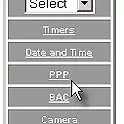
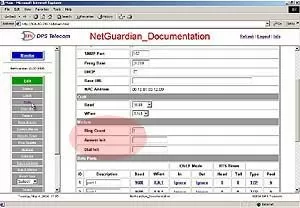
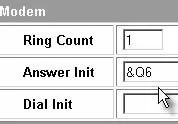
To configure your NetGuardian as a PPP server, follow these steps:
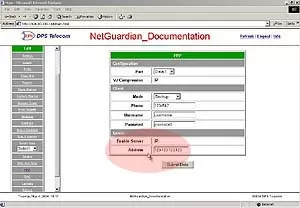
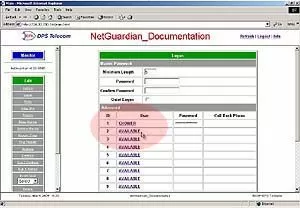
Note: There can be up to 16 different user names and each one must have its own password.
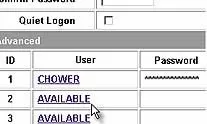
Note: User name and password must be different from the master user name and password.
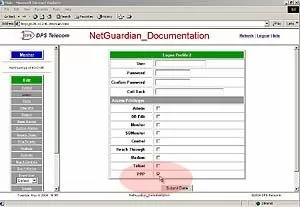
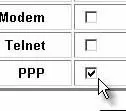
You also need to configure your remote terminal modem in order to access your NetGuardian by following these steps:
Windows 98 users: set baud rate to 9600.
Windows 2000, XP users: in modem configuration general tab uncheck "Enable modem error control" and "Enable compression."
Mac OSX users: use standard dial-in.
For more information and quick tips on how to better use your network monitoring alarm systems contact DPS Telecom Tech Support at (559) 454-1600.