Check out our White Paper Series!
A complete library of helpful advice and survival guides for every aspect of system monitoring and control.
1-800-693-0351
Have a specific question? Ask our team of expert engineers and get a specific answer!
Sign up for the next DPS Factory Training!
Whether you're new to our equipment or you've used it for years, DPS factory training is the best way to get more from your monitoring.
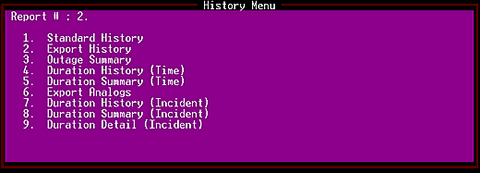
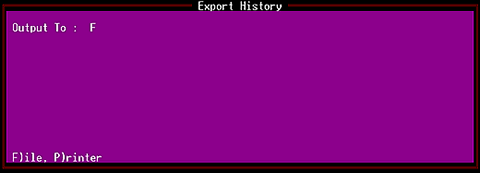
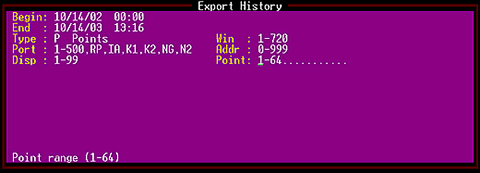
Reserve Your Seat TodayAll the information gathered by your T/MonXM system can be exported in the form of a history report file. This file is a tremendous resource of information about your system.
Analyzing history reports give you the means of tracking trends and identifying problem areas in your network. You can use this information to find recurring problems, which will help you prevent future problems. This data can also help you plan maintenance schedules and equipment replacement.
To make trend analysis simpler, T/MonXM supports exporting history reports as comma-delimited text files, which can be imported into standard software tools like databases and spreadsheets. This means you can use familiar tools like Excel to chart and graph alarm data, making the data visual and clearly understandable for study or presentation.