Check out our White Paper Series!
A complete library of helpful advice and survival guides for every aspect of system monitoring and control.
1-800-693-0351
Have a specific question? Ask our team of expert engineers and get a specific answer!
Sign up for the next DPS Factory Training!
Whether you're new to our equipment or you've used it for years, DPS factory training is the best way to get more from your monitoring.
Reserve Your Seat TodaySending alarms to your cell phone is a great way to stay on top of evolving network threats after hours or while you're out in the field.
By configuring your RTU to send alarm notifications to the TAP gateway phone number of your wireless provider, you can send text alarms to your phone.
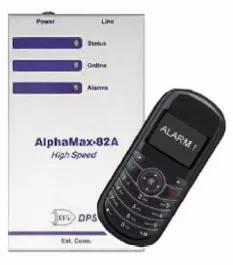
This "techno knowledge" paper can help you if: You want to send alarms to your cell phone without routing the alarm messages through email.
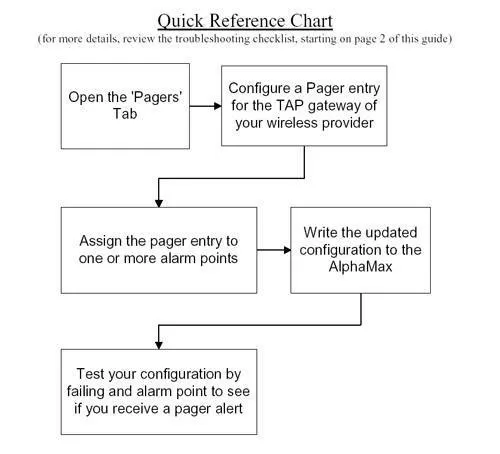
NOTE: This procedure explains how to setup an AlphaMax to send alarms to a TAP Gateway with T/AlphaW software. You may follow a very similar process to configure other DPS remotes using their respective Windows provisioning utilities.
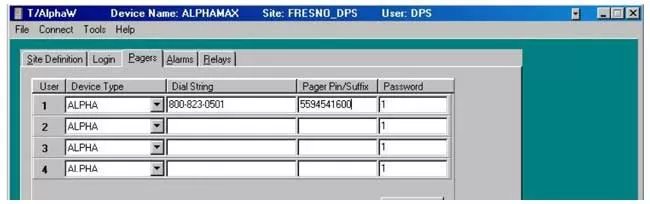
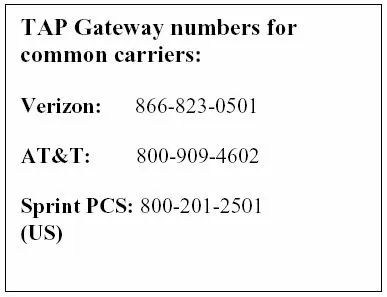
Your AlphaMax should now be configured to send TAP pages to your cell phone.
Suggested Test: Fail an alarm point to see if you receive a pager alert
NOTE: If you are not receiving TAP pages on your cell phone, it is possible that the problem lies with your wireless provider. In this case, contact their technical support department to troubleshoot the problem.
NOTE: Messaging charges may apply for alarm messages sent to your cell phone. Please check with your wireless provider.
If you continue to have issues creating sending TAP pages to your cell phone and you believe the problem is with your RTU configuration, please contact DPS Telecom Tech Support