"How To: Send Alarms to Your Cell via TAP Gateway..."

Get Pricing Info
Get Crucial Alerts Directly On Your Cell...

Sending alarms to your cell phone is one of the best ways to stay on top of evolving monitoring threats. These alarm messages enable you to monitor and tackle problems remotely, even after hours or while you're out in the field.

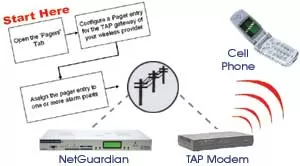
TAP is used when you want to receive an SMS text message to your cell phone however you might not have a LAN connection to your NetGuardian or the LAN connection you do have is only an internal LAN without outside access.

The NetGuardian G5 features SNPP functionality, which sends text messages over LAN.

This "techno knowledge" paper can help you if:

  • You want to send alarms to your cell phone without routing the alarm messages through email.

Troubleshooting Checklist:

NOTE: This procedure explains how to setup a NetGuardian to send alarms to a TAP Gateway using the NetGuardians web-browser. Keep in mind that the same steps can be followed using the NGEdit software utility.
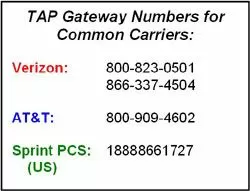
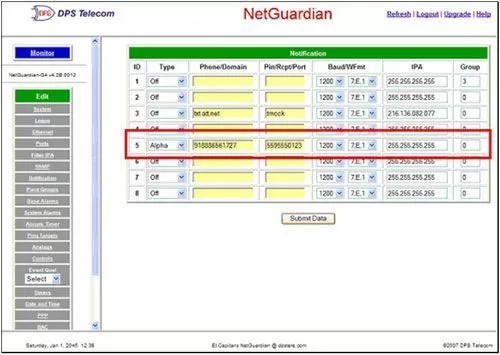
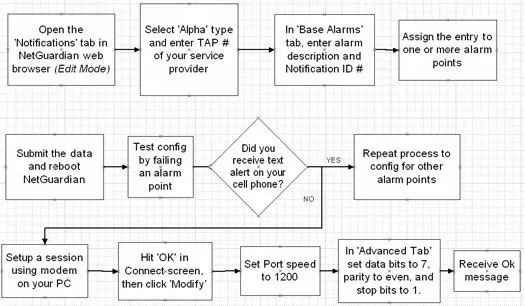
  1. In 'Edit Mode' open the Notifications tab in your NetGuardian web-browser. In this example, we'll be using Notification ID #5. Select 'Alpha' in the Type drop down box and enter the TAP number in the phone/domain field. Let's send an SMS text message to a Sprint PCS phone.
    • Be careful using the numbers listed here as sometimes the numbers change. If the following numbers do not work you will need to call your cell phone service provider to get the appropriate TAP number.
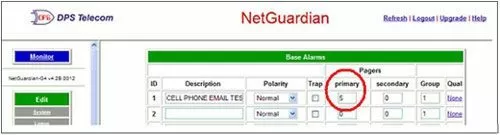
    • Next go to the 'Base Alarms' tab and enter the alarm point description. Now enter the Notification ID number used in either the Primary or Secondary columns. The NetGuardian is capable of sending multiple messages to multiple users. The Primary column can represent one notification device, and the Secondary could be another, The group field can have up to 8 users in one if all notification devices have the same group number listed.
  2. After you submit this data, you'll need to reboot the NetGuardian. Once the NetGuardian is rebooted, go back to the 'Edit Base Alarms' tab and reverse the alarm point to trigger an alarm condition. This acts like a test to see if you receive the text message on your cell phone.
    If you did not receive the text message on your cell phone you can do a couple things to troubleshoot:
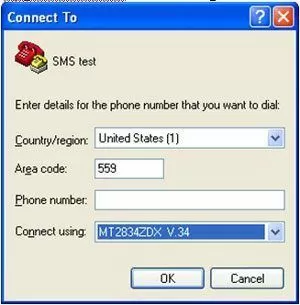
    • Open hyperterminal and set up a session using your modem on your PC (or an external modem).
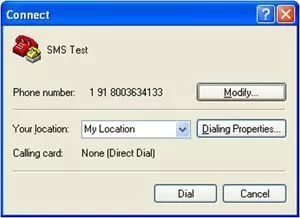
    • It is not necessary to input a phone number, just hit OK and then in the connect screen do not hit dial, just hit Modify.
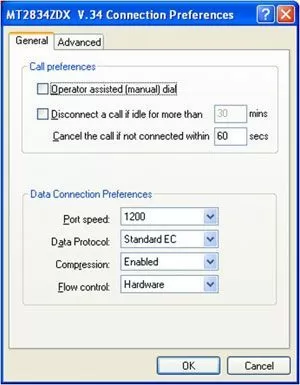
    • Set the Port speed to 1200 and then go to the advanced tab.
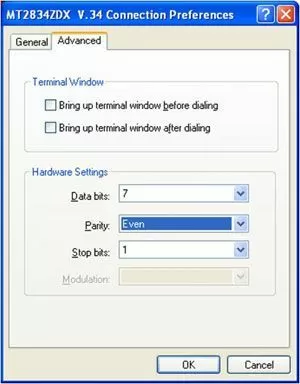
    • Set your data bits, parity and stop bits to 7, even, and 1. Then click ok.
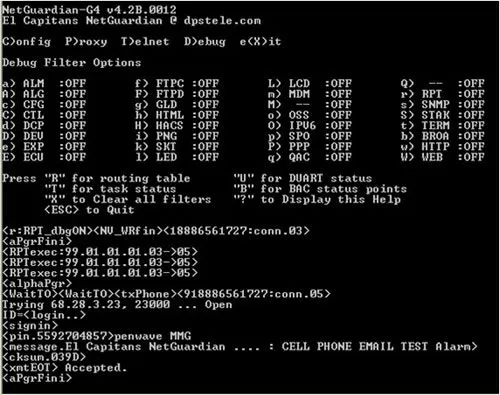
  3. Now back at the connect screen hit cancel and you should have a blank hyperterminal screen in front of you. Type AT and hit enter, you should get an ok message back (at first you will not be able to see your characters when you type). If you do not get an OK message back you are not connected to a modem.
  4. Next type ATE1V1 should get an OK message back again. Now when you type you will see your characters echo back at you.
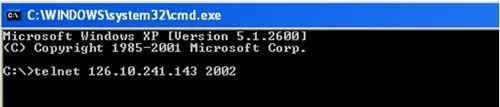
  5. Next type Atxxxxxxxxxx where x's are the tap phone number.

    1. NOTE: If you are not receiving TAP pages on your cell phone, it is possible that the problem lies with your wireless provider. In this case, contact their technical support department to troubleshoot the problem. Messaging charges may apply for alarm messages sent to your cell phone. Please check with your wireless provider.

      If you continue to have issues creating sending TAP pages to your cell phone and you believe the problem is with your RTU configuration, please contact DPS Telecom Tech Support
Request More Info
(simple online form)
Get Pricing Info
Next Page >>
most related to this one
Mac Smith - DPS Sales
Mac Smith

What else do you need to know? Send me your question right now:

  My question is:

Where should I send your answer?

Name: Company Name:
Email: Phone Number:
State:


Give Us a Call!

To find out more about this and other DPS applications, give us a call at our toll-free number and talk to one of our network specialists. They'll help you put together a perfect fit solution for your network!

Sales: 1-800-693-0351 · Fax: 559-454-1688