Download our free SNMP White Paper. Featuring SNMP Expert Marshall DenHartog.
This guidebook has been created to give you the information you need to successfully implement SNMP-based alarm monitoring in your network.
1-800-693-0351
Have a specific question? Ask our team of expert engineers and get a specific answer!
Sign up for the next DPS Factory Training!
Whether you're new to our equipment or you've used it for years, DPS factory training is the best way to get more from your monitoring.
Reserve Your Seat TodayWith support for SNMPv3 now embedded in the NetGuardian 832A G5, you can report all of your NetGuardian alarms with enhanced security via message encryption. If securing your data transmission is a must, here's how to set up v3 monitoring in NGEdit. Setting up with the NetGuardian web browser interface is very similar.
NGEdit now features an updated SNMP tab, allowing you to configure your SNMP version and security settings.
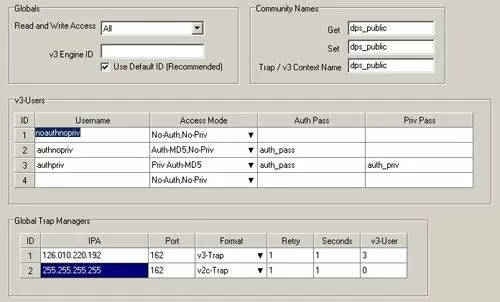
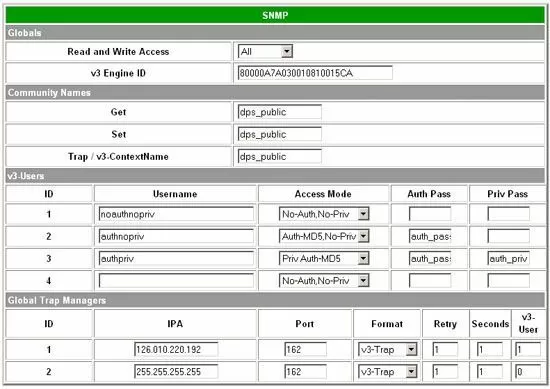
The "Globals" section allows you to select which versions of SNMP may read and write to the NetGuardian, including none or all of the above. Users that do not require the advanced security features of v3 will probably select "All". Those users that require the enhanced security of message encryption should select v3. You can also adjust your v3 Engine, though DPS recommends using the default Engine ID that is automatically generated.
In the "Community Names" section, users can adjust the Get, Set, and v3 community strings to be used by the NetGuardian. Please note that these strings are case sensitive.
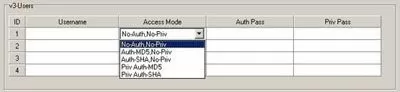
Due to the new v3 monitoring functionality, NGEdit now features a v3 Users table. You can select up to four unique users for v3 management, each with their own settings for Auth and Priv access. These settings determine how the NetGuardian will authenticate v3 users.
As with previous generations of the NetGuardian 832A, the NetGuardian G5 can report to two SNMP trap managers. In the Global Trap Managers table, you can select these SNMP trap managers via IP address, while also configuring the access port and output format desired for reporting.
For more on accessing your SNMPv3 settings via NGEdit, see section 3.6 - SNMP Tab in the NGEdit5 User Manual.
Configuring Your v3 Settings using the NetGuardian Web Browser Interface
For those accessing their v3 settings remotely, you can also easily adjust your NetGuardian 832A's SNMPv3 settings using the web browser interface. The web browser interface features all of the same fields as the SNMP tab within NGEdit, and they can be adjusted in the same manner.
For more information on adjusting your v3 settings within the web browser interface, see section 2.4.3. - Setting up SNMP in the NetGuardian 832A G5 Web Browser User Manual, or contact the DPS Technical Support team for assistance in taking advantage of this advanced new security feature.